Articles
Yocto Cheat Sheet: BitBake Commands, Recipes, Variables and Debugging
A practical Yocto cheat sheet covering common BitBake commands, recipes, bbappend files, variables, packages, debugging and useful build paths.
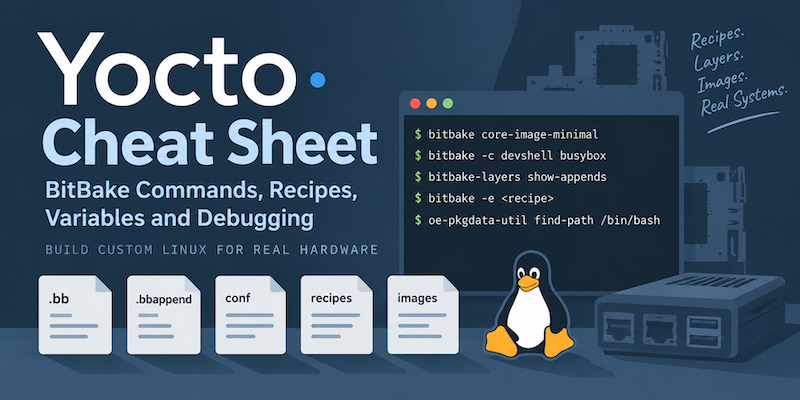
I spend a lot of time working with Yocto, but I still don’t remember every BitBake command or variable I need. Some commands are used every day; others are needed just infrequently enough that I have to look them up each time.
This is my cheat sheet for the Yocto and BitBake commands I use regularly when building, debugging and modifying images.
Common BitBake commands
| What I want to do | Command |
|---|---|
| Build a recipe or image | bitbake <recipe> |
| Build a specific task | bitbake -c <task> <recipe> |
| List available tasks | bitbake -c listtasks <recipe> |
| Open a development shell | bitbake -c devshell <recipe> |
| Clean a recipe | bitbake -c clean <recipe> |
| Remove recipe output and shared state | bitbake -c cleansstate <recipe> |
| Inspect the BitBake environment | bitbake -e <recipe> |
| Inspect the BitBake environment for a specific variable | bitbake-getvar -r <recipe> variable |
| Show configured layers | bitbake-layers show-layers |
| Find recipes | bitbake-layers show-recipes |
Find .bbappend files | bitbake-layers show-appends |
| Show package contents | oe-pkgdata-util list-pkg-files <package> |
| Find which package contains a file | oe-pkgdata-util find-path <path> |
The rest of this cheat sheet goes into each of these areas in more detail.
Building with BitBake
Build an image or recipe:
bitbake core-image-minimalBitBake resolves the dependencies, executes any tasks that need to run and produces the requested target.
Multiple targets can be specified:
bitbake busybox dropbearRun a specific task
Use -c to execute a particular task:
bitbake -c compile busyboxCommon tasks include:
do_fetch
do_unpack
do_patch
do_configure
do_compile
do_install
do_package
do_deploy
The do_ prefix can normally be omitted when using -c:
bitbake -c compile busyboxrather than:
bitbake -c do_compile busyboxList the tasks for a recipe
bitbake -c listtasks busyboxThis is useful when a recipe or class adds tasks that you aren’t familiar with.
Force a task to run
bitbake -c compile -f busybox-f marks the requested task as forced.
Be careful with this during normal development. BitBake’s dependency and signature handling is there for a reason, and repeatedly forcing tasks can hide problems with the metadata.
Cleaning recipes
There are several levels of cleaning.
Clean generated output
bitbake -c clean busyboxThis removes the recipe’s generated output from its work directory.
Remove output and shared state
bitbake -c cleansstate busyboxThis also removes the recipe’s shared-state output so that BitBake cannot simply restore the task from the local sstate cache.
This is useful when I want to make sure a recipe is rebuilt rather than restored from previously generated shared state.
Remove downloaded source
bitbake -c cleanall busyboxcleanall goes further and removes downloaded source files as well.
I rarely need this. If I’m debugging a build problem, cleansstate is normally a better starting point.
Layers
Show configured layers
bitbake-layers show-layersFor example:
layer             path                                           priority
=========================================================================
core              /work/layers/third-party/openembedded-core/meta       5
meta-oe           /work/layers/third-party/meta-openembedded/meta-oe    5
meta-project      /work/layers/project/meta-my-project                 10
This is one of the first commands I use when checking an unfamiliar build.
It tells me which layers BitBake is actually using, rather than which layers happen to exist in the source tree.
Create a layer
bitbake-layers create-layer ../layers/project/meta-exampleAdd a layer
bitbake-layers add-layer ../layers/project/meta-exampleThis adds the layer to BBLAYERS in bblayers.conf.
Finding recipes
List the recipes BitBake knows about:
bitbake-layers show-recipesFind a particular recipe:
bitbake-layers show-recipes | grep busyboxThis also helps when several layers provide versions of the same recipe.
Show recipes from a particular layer
bitbake-layers show-recipes --layer meta-openembeddedWhich recipe version will BitBake use?
The selected recipe can be seen with:
bitbake-layers show-recipes busyboxIf several versions exist, the output shows which one is preferred.
You can also inspect:
bitbake-getvar -r busybox PVto see the final version BitBake has selected.
.bb recipe files
A BitBake recipe normally has the extension:
.bbFor example:
busybox_1.36.1.bbThe filename usually contains:
<recipe-name>_<version>.bbInside the recipe, BitBake derives:
PN
PV
where PN is the recipe name and PV is its version.
For the example above:
PN = "busybox"
PV = "1.36.1"
.bbappend files
A .bbappend modifies an existing recipe without requiring you to edit or copy the original .bb file.
For example:
busybox_1.36.1.bbappendapplies to:
busybox_1.36.1.bbThis is particularly useful when the original recipe belongs to another layer.
See the article .bbappend files in a Yocto Project for more details.
Match multiple recipe versions
A % wildcard can be used in the filename:
busybox_%.bbappendThis allows the append to apply to different versions of the BusyBox recipe.
I use this when the change genuinely applies across versions. If a modification depends on a particular upstream version, explicitly matching that version is safer.
Show .bbappend files
bitbake-layers show-appendsFind appends relating to a particular recipe:
bitbake-layers show-appends | grep busyboxThis is extremely useful when trying to work out where a recipe is being modified.
Check for unmatched .bbappend files
If an append exists but no matching recipe is available, BitBake will normally report it as an error during parsing.
A common cause is upgrading a layer containing:
foo_1.2.bbto a version containing:
foo_1.3.bbwhile another layer still contains:
foo_1.2.bbappendUsing:
foo_%.bbappendcan avoid this when the append is genuinely version-independent.
Adding files from a .bbappend
A common use for a .bbappend is to add configuration files, patches or systemd units to an existing recipe.
A typical layout is:
recipes-example/
└── example/
    ├── example_%.bbappend
    └── files/
        └── example.conf
The append can contain:
FILESEXTRAPATHS:prepend := "${THISDIR}/files:"

SRC_URI += "file://example.conf"
FILESEXTRAPATHS tells BitBake where else to look for files referenced by SRC_URI.
The file can then be installed with:
do_install:append() {
    install -d ${D}${sysconfdir}
    install -m 0644 ${WORKDIR}/example.conf \
        ${D}${sysconfdir}/example.conf
}
On newer Yocto releases where recipe sources are unpacked into UNPACKDIR, use the appropriate source location for the release and recipe you are working with rather than assuming ${WORKDIR}.
Inspecting variables
One of the most useful BitBake debugging commands is:
bitbake -e <recipe>For example:
bitbake -e busyboxThis prints the environment BitBake has constructed for the recipe after configuration files, classes, recipes, appends and overrides have been processed.
Find the value of a variable
bitbake-getvar -r busybox SRC_URIOr:
bitbake-getvar -r busybox PACKAGECONFIGSee where a variable was changed
The output of bitbake -e and bitbake-getvar includes a history of the operations that produced many variables.
A useful approach is:
bitbake -e busybox | lessthen search for:
/SRC_URI=The comments above the final value show where assignments and modifications came from.
This is often far more useful than searching through layers manually.
BitBake variable assignment
BitBake has several assignment operators.
This is also covered in Lesson 6 of my training course.
Normal assignment
FOO = "bar"The value is expanded when the variable is used.
Immediate expansion
FOO := "${BAR}"The value is expanded when the assignment is parsed.
Set if undefined
FOO ?= "bar"This assigns the value if FOO has not already been set.
Weak default
FOO ??= "bar"This provides a weak default value.
Append with a space
FOO += "bar"Prepend with a space
FOO =+ "bar"Override-style append
FOO:append = " bar"Notice the leading space. Override-style :append does not insert one automatically.
Override-style prepend
FOO:prepend = "bar "Remove a value
FOO:remove = "bar"Overrides
Overrides allow metadata to change according to the active configuration.
For example:
SRC_URI:append:my-machine = " file://my-machine.patch"This addition is applied only when the my-machine override is active.
Machine-specific values are common:
KERNEL_DEVICETREE:my-machine = "vendor/my-board.dtb"Other overrides can apply to distributions, architectures, classes and packages.
To see the active overrides:
bitbake -e <recipe> | grep '^OVERRIDES='Appending and prepending tasks
Existing tasks can be extended without replacing them.
do_install:append() {
    install -d ${D}${sysconfdir}
    install -m 0644 ${UNPACKDIR}/example.conf \
        ${D}${sysconfdir}/example.conf
}
Or prepend commands:
do_configure:prepend() {
    echo "Running before configure"
}
This is generally preferable to replacing an entire task when you only need to add a small amount of behaviour.
Common recipe variables
These are some of the variables I encounter most often.
| Variable | Meaning |
|---|---|
PN | Recipe name |
PV | Recipe version |
PR | Recipe revision |
WORKDIR | Recipe work directory |
UNPACKDIR | Directory used for unpacked source files on newer releases (Wrynose+) |
S | Source directory |
B | Build directory |
D | Destination directory used by do_install |
bindir | /usr/bin |
sbindir | /usr/sbin |
sysconfdir | /etc |
libdir | Library directory |
datadir | Shared data directory |
systemd_system_unitdir | systemd system unit directory |
DEPLOY_DIR_IMAGE | Deployed images for the current machine |
Using variables such as ${sysconfdir} and ${bindir} is preferable to hard-coding paths into recipes.
There is a longer list in the Common Variables article.
SRC_URI
SRC_URI specifies sources used by a recipe.
A Git repository might be:
SRC_URI = "git://github.com/example/project.git;protocol=https;branch=main"A local file:
SRC_URI += "file://example.conf"A patch:
SRC_URI += "file://0001-fix-something.patch"Patches in SRC_URI are normally applied automatically during do_patch.
Git revisions
A Git recipe will commonly specify:
SRCREV = "0123456789abcdef..."and:
PV = "1.0+git${SRCPV}"Pinning SRCREV makes the source used for the build reproducible.
Dependencies
There are two dependency types that are particularly important.
Build-time dependencies
DEPENDS = "openssl zlib"These are dependencies required while building the recipe.
Runtime dependencies
RDEPENDS:${PN} = "bash"These are packages required on the target when the package is installed.
This distinction matters.
If a program needs a library in order to compile, that is generally a build-time dependency.
If a shell script installed by the recipe needs Bash when it runs on the target, that is a runtime dependency.
PACKAGECONFIG
PACKAGECONFIG is commonly used to enable or disable optional features in a recipe.
For example:
PACKAGECONFIG ??= "ssl"

PACKAGECONFIG[ssl] = "--enable-ssl,--disable-ssl,openssl"
The four commonly used fields are:
enable options,
disable options,
build dependencies,
runtime dependencies
Inspect the final configuration with:
bitbake -e <recipe> | grep '^PACKAGECONFIG='A .bbappend can add a feature:
PACKAGECONFIG:append = " ssl"or remove one:
PACKAGECONFIG:remove = "ssl"Installing files
Files are installed into ${D} during do_install.
For example:
do_install() {
    install -d ${D}${bindir}
    install -m 0755 my-program ${D}${bindir}/my-program
}
For configuration:
do_install:append() {
    install -d ${D}${sysconfdir}/my-program
    install -m 0644 ${UNPACKDIR}/my.conf \
        ${D}${sysconfdir}/my-program/my.conf
}
${D} is a staging location used while the package is being constructed. It is not the target’s real root filesystem.
Packages
A single recipe can produce several binary packages.
The main package is normally:
${PN}Other common automatically generated packages include:
${PN}-dev
${PN}-dbg
${PN}-doc
${PN}-staticdev
Add another package
PACKAGES += "${PN}-tools"

FILES:${PN}-tools = "${bindir}/my-tool"
See the packages produced by a recipe
bitbake -e <recipe> | grep '^PACKAGES='See which files are in a package
After package data has been generated:
oe-pkgdata-util list-pkg-files <package>For example:
oe-pkgdata-util list-pkg-files busyboxWhich package provides a file?
This is one of my favourite Yocto debugging commands.
oe-pkgdata-util find-path <path>For example:
oe-pkgdata-util find-path /bin/bashIt searches the package data and identifies the package containing that path.
Wildcards are also useful when you only know part of the filename:
oe-pkgdata-util find-path '*/libssl.so*'Adding packages to an image
Packages can be added to an image with:
IMAGE_INSTALL:append = " strace tcpdump"The leading space is important.
Package groups
A packagegroup provides a convenient way to group related packages.
For example:
SUMMARY = "Packages for my application"

inherit packagegroup

RDEPENDS:${PN} = " \
    my-application \
    openssh \
    strace \
"
The image can then contain:
IMAGE_INSTALL += "packagegroup-my-application"This becomes useful as an image grows and its package list starts becoming difficult to manage.
local.conf
conf/local.conf contains configuration specific to a particular build environment.
Typical settings include:
MACHINE = "my-machine"and development conveniences such as:
EXTRA_IMAGE_FEATURES += "debug-tweaks"local.conf is useful for local configuration and experiments.
I try not to put product behaviour there. If something is required to reproduce the product, it normally belongs in a layer, distro, machine configuration or image recipe where it can be version controlled.
bblayers.conf
The layers used by the build are configured in:
conf/bblayers.confFor example:
BBLAYERS ?= " \
    /work/layers/openembedded-core/meta \
    /work/layers/meta-openembedded/meta-oe \
    /work/layers/meta-project \
"
Check what BitBake actually sees with:
bitbake-layers show-layersMachine configuration
The machine is normally selected with:
MACHINE = "my-machine"Machine configuration files are typically stored under:
conf/machine/For example:
conf/machine/my-machine.confMachine configuration describes hardware-specific aspects of the build such as the kernel, bootloader, device trees, architecture and image formats.
Distribution configuration
The distribution can be selected with:
DISTRO = "my-distro"Distribution configuration files normally live under:
conf/distro/A distro is a good place for product-wide policy such as:
- package format
- init system
- distribution features
- preferred providers
- security policy
- toolchain choices
Hardware-specific configuration belongs in the machine rather than the distro.
DISTRO_FEATURES
See the enabled distribution features with:
bitbake -e | grep '^DISTRO_FEATURES='Features can be added with:
DISTRO_FEATURES:append = " systemd"or removed:
DISTRO_FEATURES:remove = "x11"Some features affect large parts of the dependency graph, so changing DISTRO_FEATURES can have considerably wider effects than simply adding a package to an image.
systemd services
A recipe installing a systemd service commonly contains:
inherit systemd

SYSTEMD_SERVICE:${PN} = "my-service.service"
SYSTEMD_AUTO_ENABLE = "enable"
Install the unit with:
do_install:append() {
    install -d ${D}${systemd_system_unitdir}
    install -m 0644 ${UNPACKDIR}/my-service.service \
        ${D}${systemd_system_unitdir}/my-service.service
}
and make sure it is included in the package if necessary:
FILES:${PN} += "${systemd_system_unitdir}/my-service.service"Kernel configuration
Open the kernel configuration interface with:
bitbake -c menuconfig virtual/kernelThis is useful for experimentation, but changing options in menuconfig alone is not a reproducible way of maintaining a product configuration.
Once I know which configuration changes I need, I put them into the appropriate kernel metadata.
Inspect kernel configuration
A development shell is often useful:
bitbake -c devshell virtual/kernelThe kernel work directory can also be found with:
bitbake-getvar -r virtual/kernel WORKDIRDevice trees
The device trees built for a machine are commonly controlled through:
KERNEL_DEVICETREEInspect it with:
bitbake-getvar -r virtual/kernel KERNEL_DEVICETREEBuilt device trees are normally deployed into:
${DEPLOY_DIR_IMAGE}Find that directory with:
bitbake-getvar -r virtual/kernel DEPLOY_DIR_IMAGEDevelopment shell
Open a shell containing the environment BitBake uses to build a recipe:
bitbake -c devshell <recipe>For example:
bitbake -c devshell busyboxThis is extremely useful when a build fails and I want to run the configure or compiler commands manually.
Inside the devshell, variables such as the compiler, sysroot and build flags have already been configured for the recipe.
Finding the work directory
bitbake-getvar -r <recipe> WORKDIRFor example:
bitbake-getvar -r busybox WORKDIRA recipe work directory contains the source, build output, task scripts, logs, package staging areas and other intermediate files.
The exact layout varies between Yocto releases and recipes, but when debugging a failed task the work directory is usually where I look next.
Finding task logs
Task logs are stored beneath the recipe’s temporary directory.
Typically:
${WORKDIR}/temp/Files include:
log.do_compile
log.do_install
log.do_package
There are also generated task scripts:
run.do_compile
run.do_install
run.do_package
If do_compile fails, I normally start with:
log.do_compileand then inspect:
run.do_compileif I need to see exactly what BitBake attempted to execute.
Why did BitBake rebuild something?
BitBake can compare task signatures to help explain why a task changed.
Generate signature data with:
bitbake -S none <target>or use:
bitbake-diffsigsagainst signature data when investigating differences.
This becomes particularly useful when a seemingly harmless metadata change causes a large part of the build to rebuild.
Dependency graphs
BitBake can generate dependency information with:
bitbake -g <target>For example:
bitbake -g core-image-minimalThis produces files including:
pn-buildlist
recipe-depends.dot
task-depends.dot
Be warned that the dependency graph for a complete image can be very large.
Find recipes providing something
BitBake providers can be inspected through the environment and layer tools.
For virtual providers, check values such as:
bitbake -e | grep '^PREFERRED_PROVIDER_'This is one of few times bitbake -e is better than bitbake-getvar
Common virtual targets include:
virtual/kernel
virtual/bootloader
For example:
bitbake-getvar -r virtual/kernel PNhelps identify the recipe selected as the kernel provider.
Preferred versions
A particular recipe version can be selected with:
PREFERRED_VERSION_busybox = "1.36.1"Wildcards are possible:
PREFERRED_VERSION_linux-yocto = "6.6%"Inspect available recipe versions with:
bitbake-layers show-recipes <recipe>Before adding a PREFERRED_VERSION, I check why BitBake selected the existing version. Pinning a version can solve the immediate problem while hiding a layer compatibility issue.
Useful directories
These are the paths I most commonly need while debugging a build.
| Variable/path | Purpose |
|---|---|
${TOPDIR} | Build directory |
${TMPDIR} | Main temporary build output |
${WORKDIR} | Work directory for a recipe |
${UNPACKDIR} | Unpacked recipe sources on newer releases |
${S} | Source directory |
${B} | Build directory |
${D} | Installation staging directory |
${DEPLOY_DIR_IMAGE} | Images, kernels, DTBs and other deployed output |
${WORKDIR}/temp/ | Task logs and generated task scripts |
Don’t guess these paths when debugging - ask BitBake:
bitbake-getvar -r <recipe> WORKDIRor:
bitbake-getvar -r <recipe> Sor:
bitbake-getvar -r <recipe> BThe value BitBake is actually using is more useful than the value you expected it to use.
Quick debugging checklist
When something isn’t behaving as expected, these are some of the commands I reach for first.
Check the layers:
bitbake-layers show-layersCheck which recipe BitBake sees:
bitbake-layers show-recipes <recipe>Check which appends modify it:
bitbake-layers show-appends | grep <recipe>Inspect a variable:
bitbake-getvar -r <recipe> VARIABLEInspect the complete environment:
bitbake -e <recipe> | lessFind the work directory:
bitbake-getvar -r <recipe> WORKDIRLook at the failed task:
${WORKDIR}/temp/log.do_<task>See exactly what the task executed:
${WORKDIR}/temp/run.do_<task>Open a development shell:
bitbake -c devshell <recipe>Find which package contains a file:
oe-pkgdata-util find-path '*/filename'See what a package contains:
oe-pkgdata-util list-pkg-files <package>Those commands solve a surprisingly large percentage of the Yocto problems I encounter.
A final rule: ask BitBake
One of the easiest mistakes to make when working with Yocto is reading a recipe and assuming you know its final configuration.
A recipe may have been affected by:
- configuration files
- classes
- include files
.bbappendfiles- machine overrides
- distro overrides
- package overrides
PACKAGECONFIG- layer priorities
The source metadata tells you what somebody intended to configure.
BitBake can tell you what actually happened.
When in doubt, I start with:
bitbake-getvar -r <recipe>It is probably the most useful Yocto debugging command in this entire cheat sheet.
Related posts
Browse all posts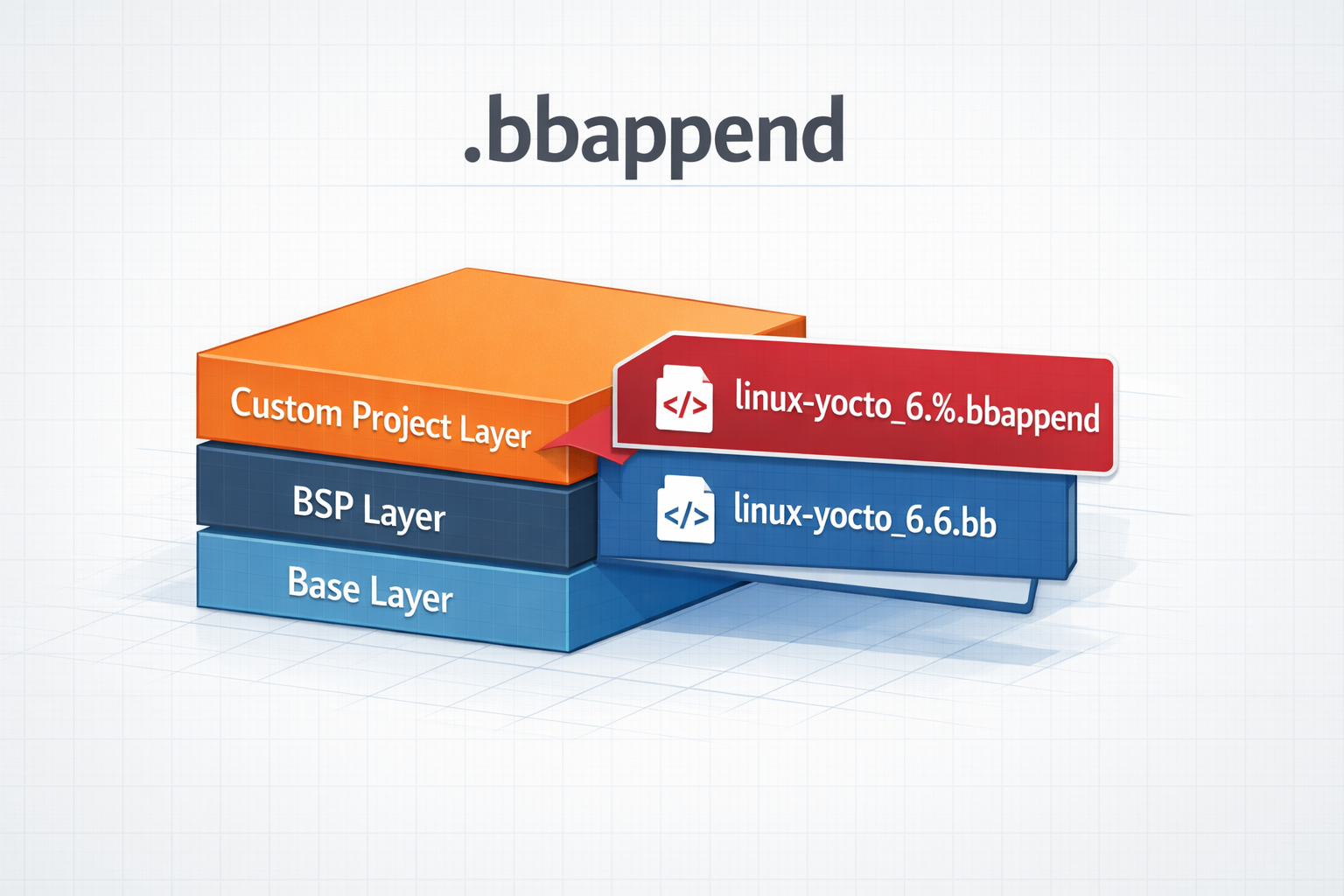
.bbappend files in a Yocto Project
How to use .bbappend files in a Yocto Project - A brief guide

Building a Matter Light switch with Yocto: From a String of LEDs to Apple Home
A Lego house, a cheap Raspberry Pi Zero W and a string of LEDs led to a deep dive into integrating Matter with Yocto, from GN and BitBake to GPIO control, commissioning and persistent Matter state.

Overriding Files
How to Override Standard Files in a Yocto Project