Articles
Remote Package Repositories
How to Set Up a Yocto Build Server as a Remote Package Repository

If you are using Yocto to create your embedded Linux system, it can be really useful to set your build server up to act as a package repository.
During development, this lets you rebuild one recipe and install or update that package on the target without rebuilding and reflashing the complete image.
Setting up
Assuming that you have set your local.conf to use IPK packages:
PACKAGE_CLASSES = "package_ipk"then when you build a recipe or image, Yocto will deploy the generated IPK files under:
${TMPDIR}/deploy/ipk/If ${TMPDIR} has not been defined in your local.conf, it will normally default to the build directory’s tmp directory.
Mine looks like:
ming@gweinydd:~/wip/yocto/build/tmp/deploy/ipk$ ls -l
total 416
drwxr-xr-x 2 ming ming 4096 Jul 9 14:50 all
drwxr-xr-x 2 ming ming 397312 Jul 11 16:49 cortexa8hf-neon
drwxr-xr-x 2 ming ming 20480 Jul 12 19:35 my_hub
The directories under tmp/deploy/ipk are package architectures. In this example they are all, cortexa8hf-neon and my_hub; in your build the names will depend on the MACHINE, tuning and build configuration.
Generate the package index
The package files are only part of the repository. You also need the package indexes that opkg reads when it checks which packages and versions are available:
bitbake package-indexThe normal development flow is:
build packages -> tmp/deploy/ipk -> bitbake package-index -> serve over HTTP -> opkg update -> opkg install/upgradeServe
What you now need to do is set up a web server to serve files from tmp/deploy/ipk.
Python
The simplest option is to use the Python HTTP server module:
cd <build-dir>/tmp/deploy/ipk
python3 -m http.server 8000
That starts a web server on port 8000. It is very handy for development and testing; it is not something I would treat as a production package server.
You can test it from another machine with:
curl http://build-server:8000/To use that feed manually on the target, add the relevant feed directories to /etc/opkg/opkg.conf:
src/gz all http://build-server:8000/all
src/gz cortexa8hf-neon http://build-server:8000/cortexa8hf-neon
src/gz my_hub http://build-server:8000/my_hub
Change build-server to the hostname or IP address of your build server. Also change the feed names to match the directories produced by your own build.
Apache
For a more persistent setup, you can use Apache. For me, with a standard Apache installation, I normally create a link from the web root to the ipk directory:
ln -s /home/ming/wip/yocto/build/tmp/deploy/ipk /var/www/html/repoThen restart the server:
apachectl restartIf you use a symlink into the build tree, remember that Apache must have permission to traverse and read the build directory. The exact details depend on your host distribution and Apache configuration, so I will not turn this article into an Apache setup guide.
Then, over on your embedded system, edit /etc/opkg/opkg.conf and add the lines for your feed:
src/gz all http://build-server/repo/all
src/gz cortexa8hf-neon http://build-server/repo/cortexa8hf-neon
src/gz my_hub http://build-server/repo/my_hub
Again, change build-server and the feed names to match your setup.
Apache is just one option. nginx, a CI/artifact server, or any other HTTP server can serve the same directory.
Yocto-managed feed configuration
Editing /etc/opkg/opkg.conf is useful for quick development and testing. For a repeatable Yocto image, I would normally generate the feed configuration as part of the image build instead of editing the target after flashing.
For example:
IMAGE_FEATURES += "package-management"

PACKAGE_FEED_URIS = "http://build-server"
PACKAGE_FEED_BASE_PATHS = "repo"
PACKAGE_FEED_ARCHS = "all cortexa8hf-neon my_hub"
Yocto combines those values into feed URLs such as:
http://build-server/repo/all
http://build-server/repo/cortexa8hf-neon
http://build-server/repo/my_hub
If you do not need to restrict the architectures, PACKAGE_FEED_ARCHS can be omitted and Yocto will use the available architectures for the current machine.
Updating the target
On the target, update the local package indexes:
opkg updateopkg update downloads the current package indexes. If packages have been rebuilt and the repository index has been regenerated, run opkg update again before attempting to install or upgrade them.
To install a package that is not already installed:
opkg install my-applicationThe really useful development case is updating a package that is already installed.
On the build server:
bitbake my-application
bitbake package-index
On the target:
opkg update
opkg upgrade my-application
That is the main advantage during development: an individual recipe can be rebuilt and deployed through the feed without rebuilding and reflashing the complete image.
To get a full list of opkg commands, just run opkg without any arguments.
Production use
Package feeds are very convenient for development and controlled package deployment, but be careful with deployed products. If individual packages can be upgraded independently, the installed system can drift away from the tested image.
For production embedded systems, have a deliberate update and versioning strategy rather than treating a development feed as the whole answer.
Related posts
Browse all posts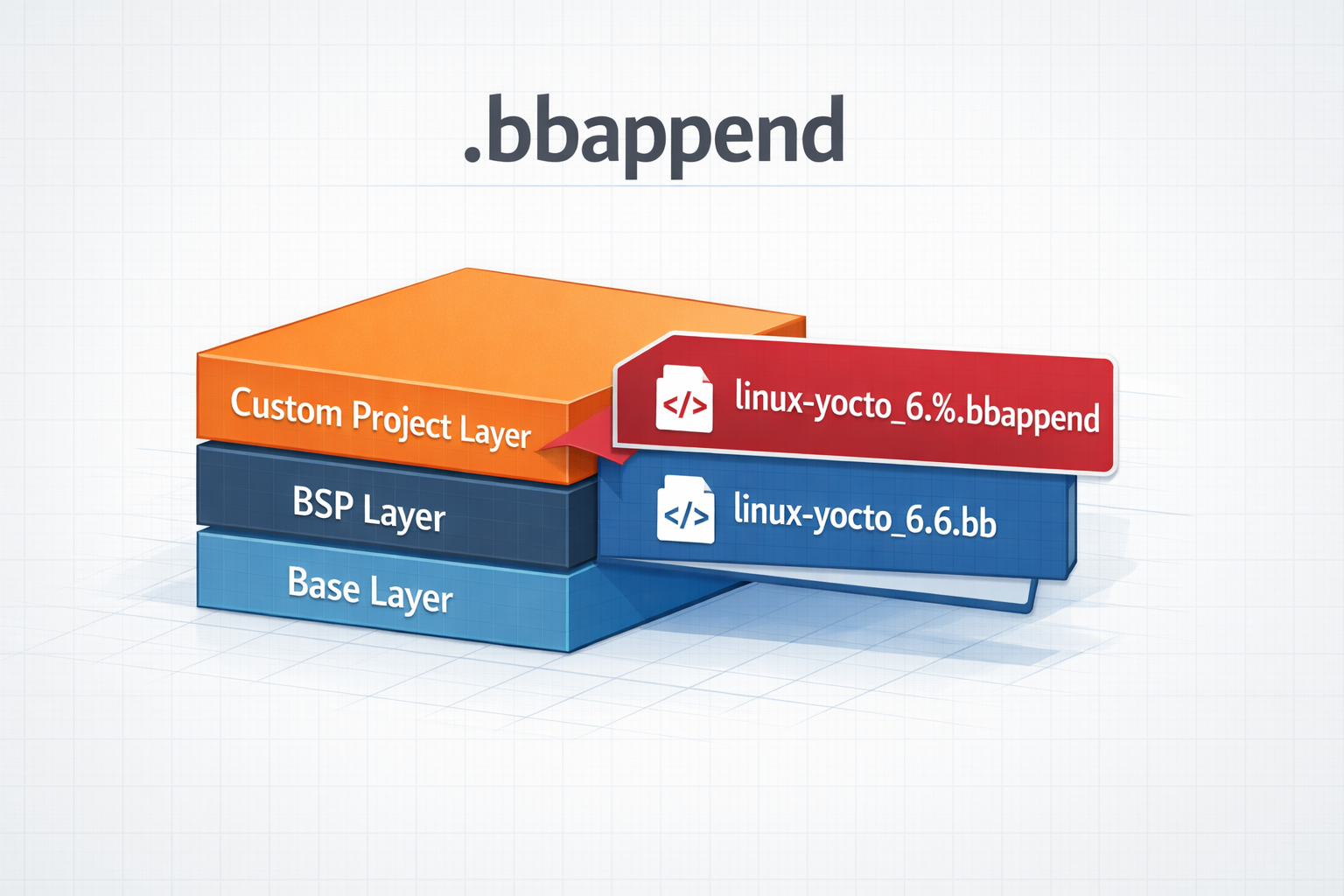
.bbappend files in a Yocto Project
How to use .bbappend files in a Yocto Project - A brief guide
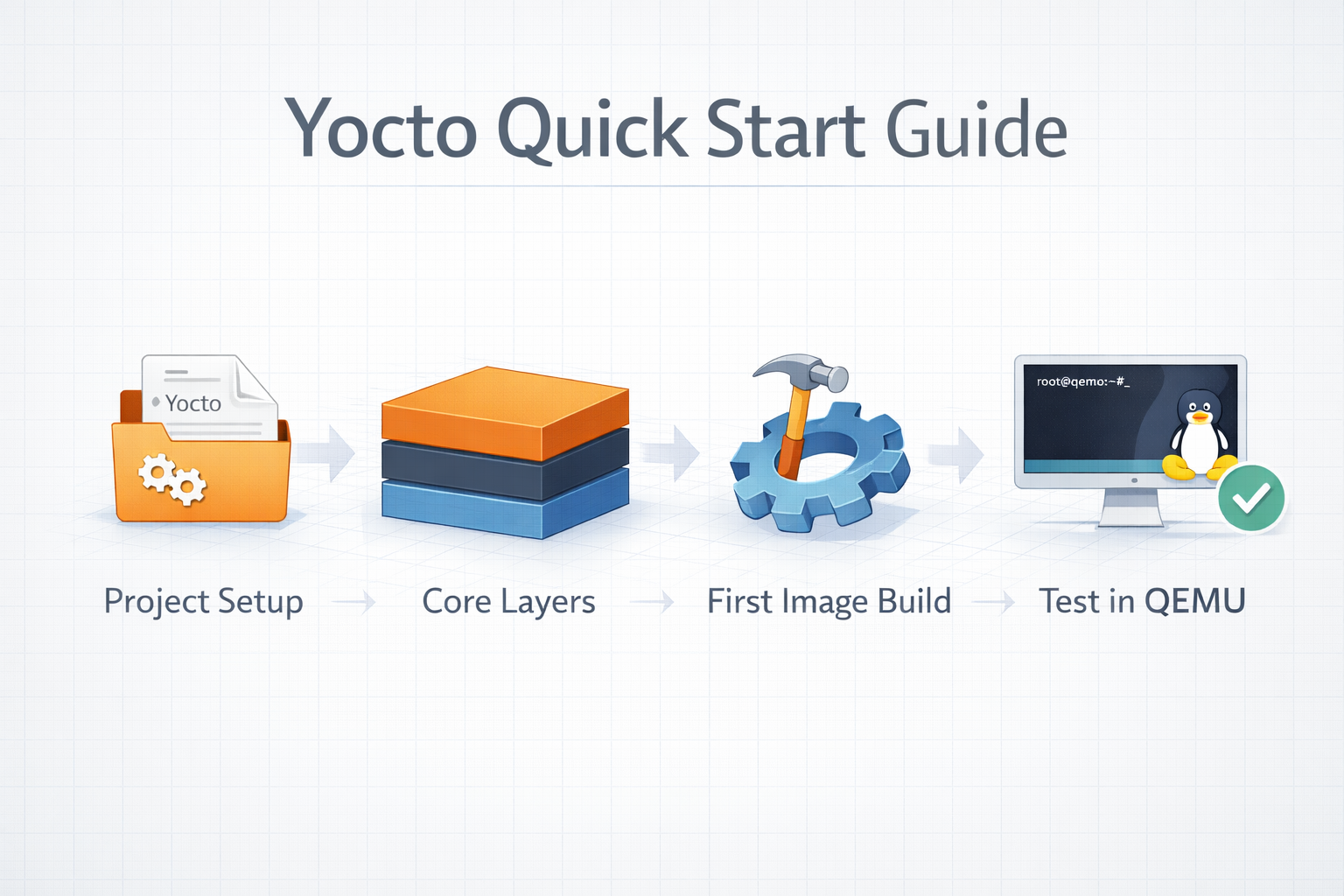
Yocto Quick Start
A Quick Guide to Getting Started With The Yocto Project

Building a Matter Light switch with Yocto: From a String of LEDs to Apple Home
A Lego house, a cheap Raspberry Pi Zero W and a string of LEDs led to a deep dive into integrating Matter with Yocto, from GN and BitBake to GPIO control, commissioning and persistent Matter state.