Articles
Yocto Quick Start
A Quick Guide to Getting Started With The Yocto Project
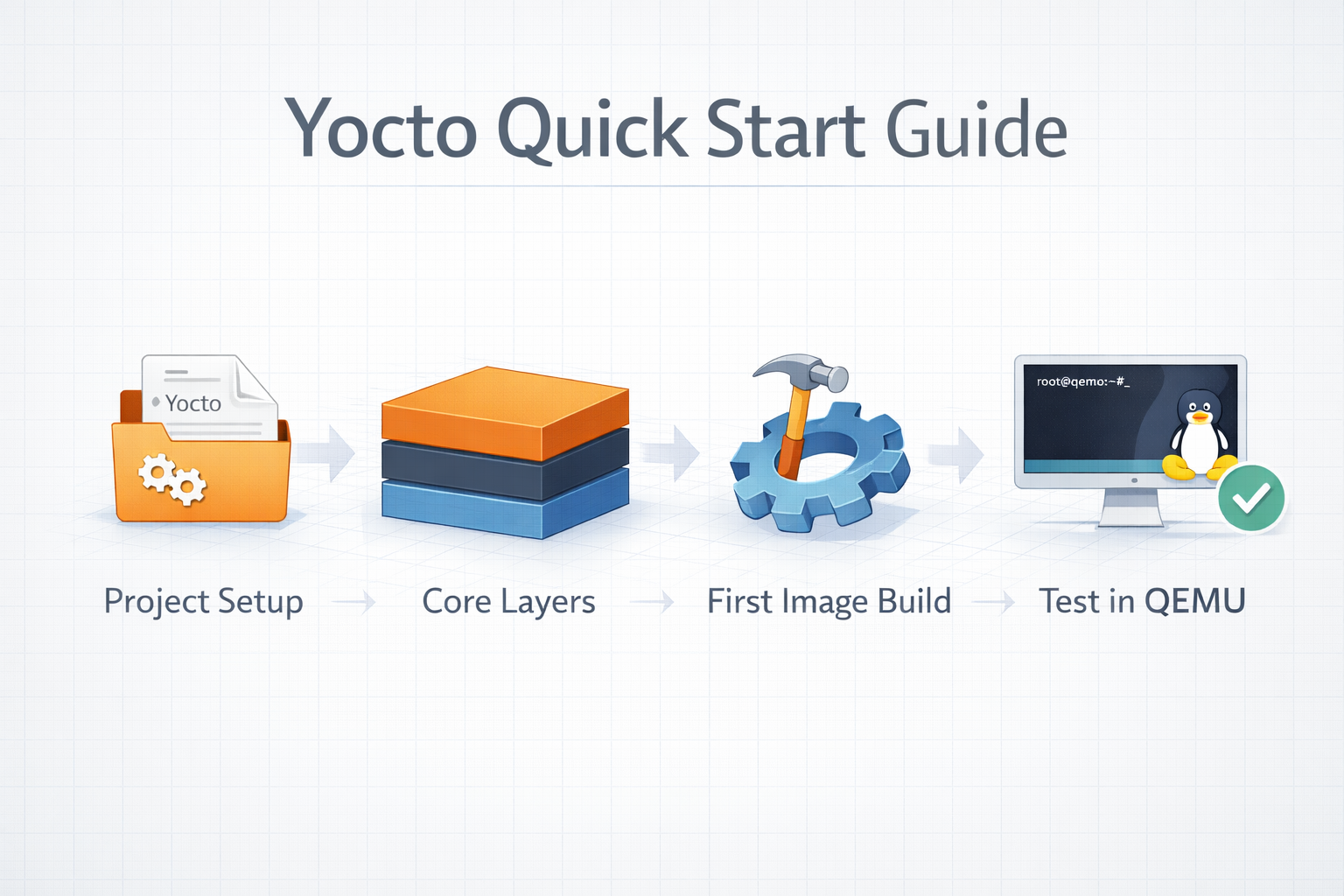
I really like the Yocto Project. As someone who builds Embedded Linux distributions, it makes my life so much easier.
However, if you are just coming into the world of Yocto it is very easy to get overwhelmed with the sheer quantity of things that it seems like you need to know about.
The truth is – you don’t!
You can actually start very small and then grow your project as you learn more.
Eating The Elephant
Q: How do you eat an elephant?
A: One bite at a time!
When you have something as big and complex as the Yocto Project, it is just too big to grasp in one sitting. I have been using it for many years now and I am still discovering brilliant new features.
Start Small
The first thing to do is create your project. I have based this on my normal training layout: keep third-party layers under layers/third-party and project-owned layers under layers/project.
For Wrynose, use a supported build host. The Yocto Project 6.0 system requirements list supported releases including AlmaLinux 8/9, CentOS Stream 9, Debian 11/12/13, Fedora 42/43, openSUSE Leap 15.6/16.0, Rocky Linux 8/9 and Ubuntu 22.04/24.04/25.04/25.10/26.04. Other distributions may work, but they have not been officially tested by the Yocto Project team.
You will also need a reasonable amount of disk space. The Yocto documentation recommends at least 140 GB for a QEMU image build such as core-image-sato. core-image-minimal is smaller, but I would still not start a new Yocto workstation with a nearly full disk.
Install the Tools
For a supported Ubuntu or Debian system:
sudo apt-get update
sudo apt-get install build-essential chrpath cpio debianutils diffstat file \
  gawk gcc git iputils-ping libacl1 libcrypt-dev locales python3 lz4 \
  python3-git python3-jinja2 python3-pexpect python3-pip python3-subunit \
  socat texinfo unzip wget xz-utils zstd
Make sure the en_US.UTF-8 locale is available:
locale --all-locales | grep en_US.utf8 || sudo dpkg-reconfigure localesCreate your Project Working Directory
mkdir -p ~/wip/my_project
cd ~/wip/my_project
git init
Create the Directories to Hold your Layers
mkdir -p layers/project
mkdir -p layers/third-party
Clone The Layers
BitBake – The Build Tool
BitBake is the build tool itself. For this quick start, clone the Wrynose release tag rather than master.
git clone -b yocto-6.0.3 https://git.openembedded.org/bitbake \
  layers/third-party/bitbake
OpenEmbedded-Core
OpenEmbedded-Core provides the core metadata, classes and recipes.
git clone -b yocto-6.0.3 https://git.openembedded.org/openembedded-core \
  layers/third-party/openembedded-core
meta-yocto
meta-yocto provides the Poky reference distro layer and the Yocto BSP reference layer used for QEMU machines.
git clone -b yocto-6.0.3 https://git.yoctoproject.org/meta-yocto \
  layers/third-party/meta-yocto
Create a Start Script
Being lazy - I do not want to have to type long commands to start my build system, so I create a little start script.
In ~/wip/my_project (where you should be if you are following the instructions), create a script start-yocto.sh
#!/bin/bash --init-file

source ./layers/third-party/openembedded-core/oe-init-build-env \
  ./build
Run this script each time you want to build anything, as it will initialise your environment correctly and put you into the correct build directory. Run the script now and you will be able to start your first build.
./start-yocto.shCheck that the expected layers are present:
bitbake-layers show-layersYou should see entries for meta, meta-poky and meta-yocto-bsp.
If you want to use shared download and sstate caches, add this to conf/local.conf:
DL_DIR = "${HOME}/yocto/shared/downloads"
SSTATE_DIR = "${HOME}/yocto/shared/sstate-cache/${MACHINE}"
and create the directories
mkdir -p ~/yocto/shared/downloads
mkdir -p ~/yocto/shared/sstate-cache
Build your First Image
Create a minimal image with the command
bitbake core-image-minimalHowever, the next time you run a build, BitBake only has to do that for anything that has changed. It takes about 2 hours for the first build on my system, but then about 25 seconds for the next run (assuming I have not changed too much)
Test the Image
At this point, you have built an image for a QEMU (Quick Emulator) x86-64 target. You can run your image with the command:
runqemu qemux86-64Login as root with no password.
If you want to learn more about running QEMU, see the Using the Quick EMUlator (QEMU) chapter in the Yocto Project Development Tasks Manual.
Exit QEMU by either clicking on the shutdown icon or by typing Ctrl-C in the QEMU transcript window from
which you invoked QEMU.
Next Steps
The next things you are going to want to do are find out about
- Adding additional layers
- Creating your own layer
- Creating your own image
- Adding your own recipe
- Appending an existing recipe
- Creating your own distribution
Take a look the training section to start learning more.
Related posts
Browse all posts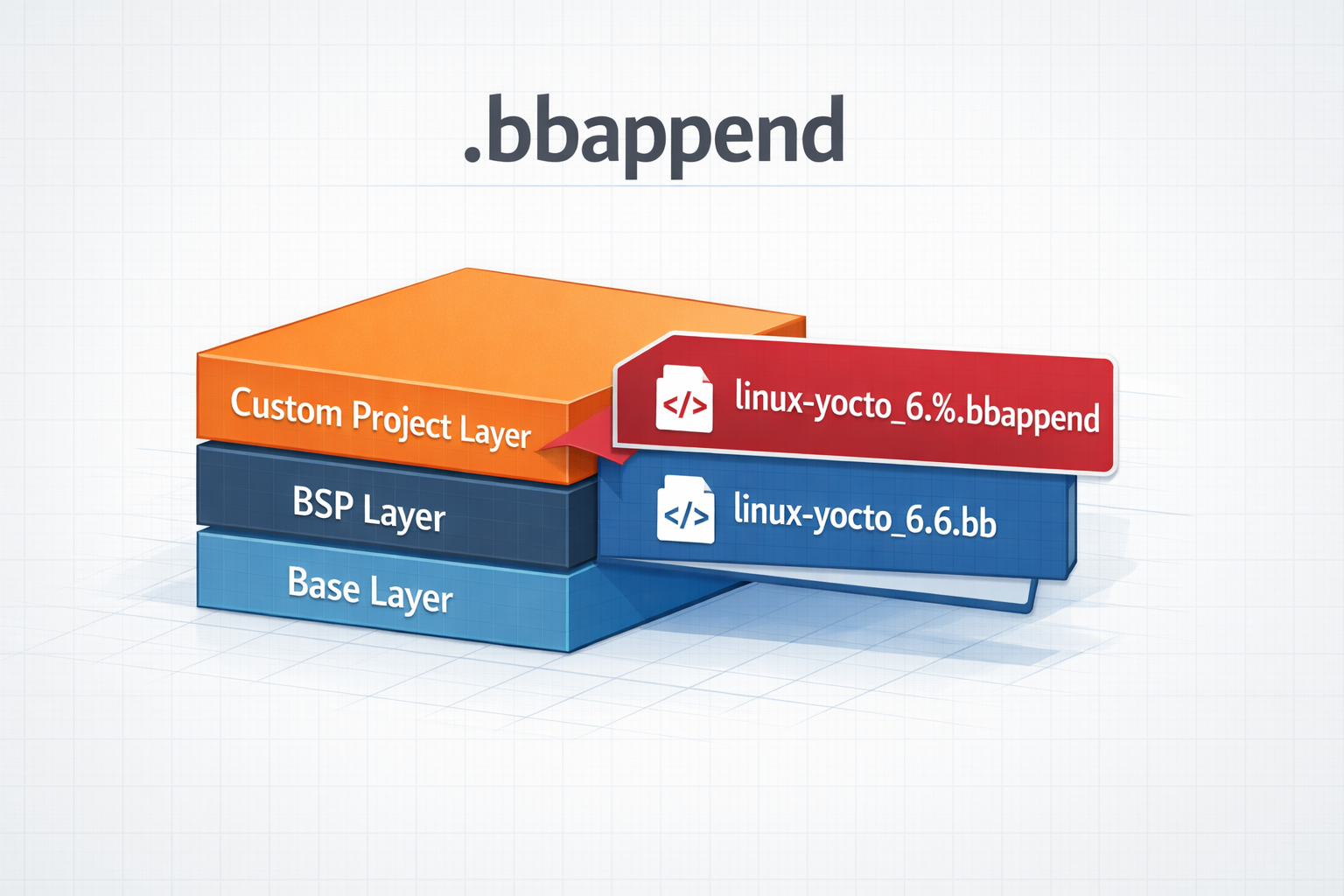
.bbappend files in a Yocto Project
How to use .bbappend files in a Yocto Project - A brief guide
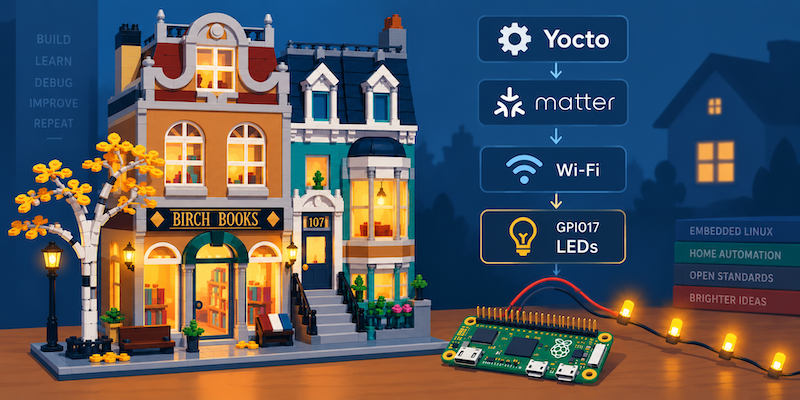
Building a Matter Light switch with Yocto: From a String of LEDs to Apple Home
A Lego house, a cheap Raspberry Pi Zero W and a string of LEDs led to a deep dive into integrating Matter with Yocto, from GN and BitBake to GPIO control, commissioning and persistent Matter state.
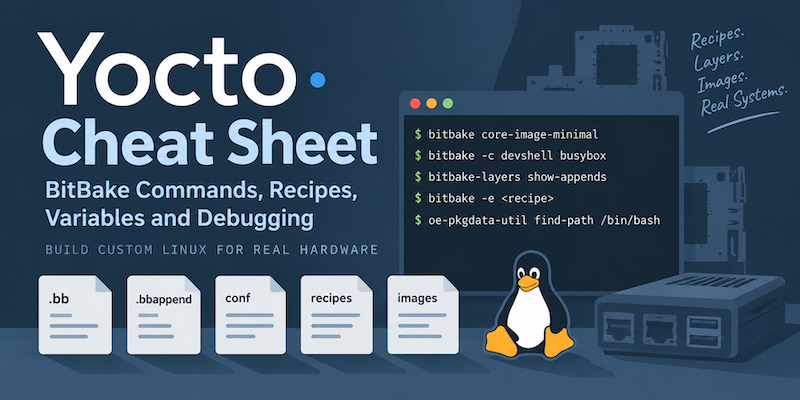
Yocto Cheat Sheet: BitBake Commands, Recipes, Variables and Debugging
A practical Yocto cheat sheet covering common BitBake commands, recipes, bbappend files, variables, packages, debugging and useful build paths.