Articles
Inspecting and Editing Device Trees with VS Code
Using a VS Code extension to preview the final merged Linux Device Tree while retaining the source of properties, nodes and overrides.
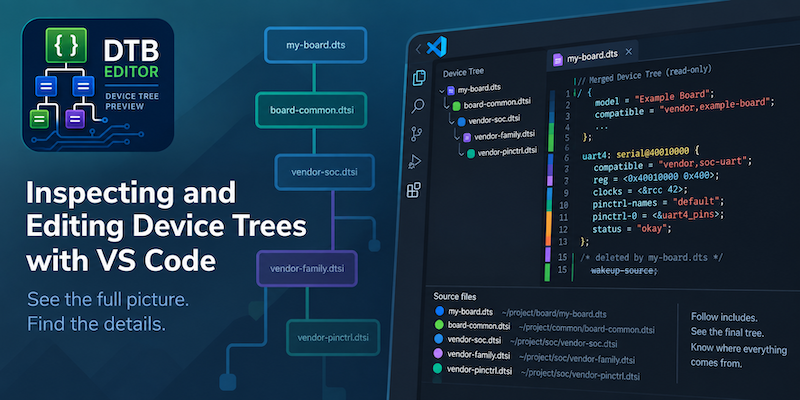
I hate Device Trees
They tend to start simply. There is a .dts file describing a board, perhaps a .dtsi describing the SoC, and it is reasonably easy to see where everything comes from. Then you start working with a real BSP…
The board DTS includes a common board file, which includes a SoC file, which includes another file containing peripherals. Nodes are defined in one place, enabled somewhere else and have properties overridden in a third. There may also be /delete-property/ and /delete-node/ directives changing things again. I usually end up with 15 tabs open in my editor trying to cross reference where things are actually being set.
For years, I kept on saying that I really wanted a tool to see what was going on. No one else was creating it, so I wrote the VS Code Device Tree Editor extension.
Its main feature is a preview of the effective Device Tree: the source files are followed through their include hierarchy, nodes and properties are merged, label references are applied, and the result is displayed alongside the files being edited. Importantly, the preview also retains information about which file set the final value.
The Device Tree is often spread across several files
Consider a deliberately small example. A real vendor BSP can have considerably more layers than this:
my-board.dts
    └── board-common.dtsi
        └── vendor-soc.dtsi
            └── vendor-family.dtsi
Somewhere in vendor-soc.dtsi there might be a UART:
uart4: serial@40010000 {
    compatible = "vendor,soc-uart";
    reg = <0x40010000 0x400>;
    clocks = <&rcc 42>;
    status = "disabled";
};
The SoC description quite reasonably describes the hardware but leaves the peripheral disabled. The SoC cannot know whether a particular board has connected anything useful to that UART.
A board-level file can then modify it:
&uart4 {
    pinctrl-names = "default";
    pinctrl-0 = <&uart4_pins>;
    status = "okay";
};
The effective node is now something resembling:
uart4: serial@40010000 {
    compatible = "vendor,soc-uart";
    reg = <0x40010000 0x400>;
    clocks = <&rcc 42>;
    status = "okay";
    pinctrl-names = "default";
    pinctrl-0 = <&uart4_pins>;
};
But there is useful information missing from that representation. Some properties came from the SoC description, while others came from the board description. Even status has a history: it was originally disabled and was subsequently replaced with okay.
With a larger Device Tree, reconstructing this mentally becomes tedious very quickly!
Finding definitions with grep only gets you so far
The usual tools still help.
If I want to find uart4, I might start with:
grep -R "uart4:" arch/arm/boot/dts/
grep -R "&uart4" arch/arm/boot/dts/
That will normally find the original node and the places where it is referenced.
VS Code’s search is often more convenient, but fundamentally it is answering the same question: where does this text occur?
What I wanted was to select my board’s top-level DTS and see the final tree resulting from all the files that contribute to it. At the same time, I don’t want to lose the source information. If I discover:
status = "okay";I need to know which file made it okay.
On one of my recent projects, where I was doing some board bring-up work and working through several obtuse layers of includes, I finally got frustrated enough to write a tool to help, and created te VS Code extension.
Previewing the effective Device Tree
With the extension installed, open the root .dts or .dtsi file in VS Code and run:
Device Tree Editor: Preview DTS
The preview opens alongside the source editor.
Rather than showing the source file verbatim, the extension follows its Device Tree includes and constructs a merged representation of the tree.
It understands both common include forms:
#include "soc.dtsi"and:
/include/ "soc.dtsi"Includes can themselves contain further includes, so the extension builds the complete hierarchy starting from the selected root file.
The hierarchy is displayed at the top of the preview. Each source file is assigned a colour, with a corresponding colour strip alongside the resulting DTS, along with a warning if it can’t find a file that has been included. I wanted a warning as opposed to a fatal error, as then it gives me a chance to find the missing file and add it in correctly.
The include hierarchy tells me:
Which files contributed to this Device Tree?
The source colouring indicates:
Which file contributed this particular part?
The filenames in the hierarchy are also clickable, so once something interesting appears in the preview I can jump directly to the file responsible for it. Also, hovering over a value in the preview gives me the full filename, as being male, I can’t always tell different colours apart.
Merging nodes rather than concatenating files
Simply concatenating all the .dtsi files would produce something that contains all the source, but it wouldn’t show the Device Tree that those files describe.
Consider:
/ {
    model = "Example board";
};
followed elsewhere by:
/ {
    compatible = "vendor,example-board";
};
Those aren’t two root nodes in the resulting Device Tree. They contribute to the same root node. The preview therefore merges repeated nodes.
The same applies to child nodes. If an existing node is encountered again, new properties and children are incorporated into that node rather than creating another independent copy.
Properties also need overwrite semantics.
For example:
status = "disabled";followed later by:
status = "okay";needs to result in:
status = "okay";rather than displaying two status properties and leaving me to work out which one wins.
This distinction is important. The objective isn’t to show all the source text in one window. It is to show a useful approximation of the effective Device Tree.
Following label references
Label references are where this becomes particularly useful.
A SoC DTSI might contain:
uart4: serial@40010000 {
    compatible = "vendor,soc-uart";
    reg = <0x40010000 0x400>;
    status = "disabled";
};
and a board DTS might contain:
&uart4 {
    status = "okay";
};
When reading the source, these can be hundreds of lines apart and may not even be in the same file. The preview therefore maintains an index of labels while constructing the tree. When it encounters &uart4, it can find the node carrying the uart4 label and apply the changes there.
The result is therefore shown as the effective node:
uart4: serial@40010000 {
    compatible = "vendor,soc-uart";
    reg = <0x40010000 0x400>;
    status = "okay";
};
This is particularly useful when investigating why a peripheral is enabled or disabled.
Seeing:
status = "okay";in the final tree tells me its state and also which file set it.
Seeing from the source indication that the property came from my-board.dts tells me why it has that state and where I need to edit it.
Seeing what has been deleted
Device Tree source can also explicitly remove properties and nodes inherited from an earlier file.
For example:
&some_device {
    /delete-property/ wakeup-source;
};
or:
/delete-node/ old_device;Suppose I can clearly see a property in an included DTSI but it isn’t present in my final tree. I now have another search exercise to find out what happened to it. The extension therefore keeps deleted nodes and properties visible but marks them as deleted.
This means the preview can show both:
- the property does not exist in the effective tree;
- the property existed earlier and was subsequently deleted.
For debugging and understanding an unfamiliar BSP, the second piece of information can be just as useful as the first.
The source of a property matters
One of the reasons I didn’t just want a generated DTS file was that flattening everything loses some of the information I am interested in.
Imagine a node assembled from four files:
vendor-soc.dtsi
    compatible
    reg

vendor-family.dtsi
    clocks

board-common.dtsi
    pinctrl-0
    pinctrl-names

my-board.dts
    status = "okay"
A flattened representation can tell me:
serial@40010000 {
    compatible = "vendor,soc-uart";
    reg = <0x40010000 0x400>;
    clocks = <&rcc 42>;
    pinctrl-names = "default";
    pinctrl-0 = <&uart4_pins>;
    status = "okay";
};
That’s useful, but for development I want both representations simultaneously:
                         Effective node
                               │
vendor-soc.dtsi ───────────────┤ compatible
vendor-soc.dtsi ───────────────┤ reg
vendor-family.dtsi ────────────┤ clocks
board-common.dtsi ─────────────┤ pinctrl-names
board-common.dtsi ─────────────┤ pinctrl-0
my-board.dts ──────────────────┤ status
The extension retains source information while parsing and merging the files so that the preview can make that relationship visible.
Includes are useful information too
The extension also displays the include hierarchy itself.
For example:
my-board.dts
├── board-common.dtsi
│   └── vendor-soc.dtsi
│       └── vendor-family.dtsi
└── board-pinctrl.dtsi
That can reveal quite a lot about an unfamiliar BSP before looking at individual nodes. It also makes otherwise easy-to-miss situations visible. If an included .dts, .dtsi or .dtso file cannot be found, the file remains visible in the hierarchy and is marked as missing.
The extension deliberately doesn’t inject warning comments into the generated DTS for missing files. The preview is intended to remain readable as Device Tree source, while the file hierarchy provides the information about where resolution failed.
Editing remains in the source files
The merged preview is deliberately read-only.
If a property in the preview came from:
vendor-soc.dtsithen that is where the underlying property exists. If another value from:
my-board.dtshas subsequently overridden it, then that is the source responsible for the value I am actually seeing.
Editing some the merged representation would raise awkward questions about which source file should be changed. Instead, the preview helps locate the source of a setting. Clicking the corresponding filename opens the real source file, where it can be edited normally.
The preview is then automatically regenerated from the updated sources.
So the workflow remains:
          edit .dts/.dtsi
                │
                ▼
       Device Tree Editor
                │
        ┌───────┴────────┐
        │ resolve includes
        │ merge nodes
        │ apply &labels
        │ apply deletes
        │ retain sources
        └───────┬────────┘
                │
                ▼
       merged DTS preview
The extension provides another way of looking at the source tree rather than creating another source of truth.
This isn’t a replacement for dtc
One important distinction is that the extension does not invoke the Device Tree Compiler (dtc). That is intentional. Its purpose is to help understand and navigate the sources while developing a Device Tree, rather than to reproduce the complete compiler pipeline. Sometimes it means that my final edits aren’t quite right (in which case they are no longer the final edits) and I need to make some corrections when I see the errors in the compiler logs.
It also isn’t a Device Tree schema validator. It’s a helper tool. The parser implements the Device Tree constructs needed to provide a practical merged preview, including includes, repeated nodes, label references, delete directives and overlay fragments. There are more complicated Device Tree and preprocessor constructs that may not be represented exactly.
If I need to know whether the Device Tree actually compiles, dtc — or more commonly the kernel or Yocto build invoking it — remains only truly authoritative method.
Using it with Yocto BSPs
The extension became particularly useful for me when working with Yocto BSPs because the Device Tree sources are often supplied by the kernel tree and can contain a substantial hierarchy of SoC, family, module and board-level DTSI files. I can go to the kernel source work directory and reduce the number of swear words while I investigate the device tree.
As part of board bring-up, I might want to know:
- Is the peripheral actually enabled?
- Which pinctrl group is eventually assigned to it?
- Where was that assignment made?
- Did the SoC DTSI provide a default that the board later changed?
- Was a property inherited from a common board DTSI?
- Has a node or property been explicitly deleted?
- Which source file should I modify?
Getting the extension
The Device Tree Editor extension is open source and available from GitHub:
github.com/ming4real/dt_preview
Open a .dts or .dtsi file and run:
Device Tree Editor: Preview DTS
The resulting preview opens alongside the editor, showing the merged Device Tree and the hierarchy of files used to construct it.
It doesn’t replace dtc, schema validation, source search or understanding how Device Trees work. It is simply another view of the same source.
But when a peripheral definition has passed through four DTSI files and three &label modifications before reaching the board DTS, being able to see the resulting node and immediately identify where its properties came from saves a considerable amount of jumping between files.
Related posts
Browse all posts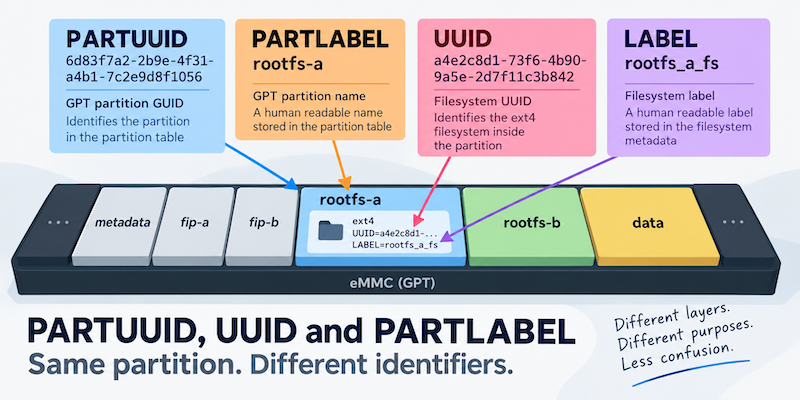
TALES FROM THE TRENCHES · #5
PARTUUID, UUID and PARTLABEL: When a Partition Has Too Many Names
Converting a system to A/B root filesystems and changing UUIDs

Decompile the DTB
Decompiling the Device Tree (DTB) for Embedded Linux
Setting GPIO Pins
Setting a GPIO pin from the Device Tree on AM335x, OSD335x and Beaglebones